
VMware Cloud Foundation 9 (VCF 9) has officially launched, introducing a next-generation Cloud Management Platform — VCF Automation (VCFA). This new platform supersedes both Aria Automation and VMware Cloud Director (VCD). This blog is specifically aimed at those familiar with VCD and looking to understand how VCFA compares — what remains familiar, what’s changed, and how to navigate the shift.
It’s important to note that VCFA is not a simple rebranding of existing tools. It is a new solution built with purpose, though it incorporates core components from its predecessors. The provider-facing layer, known as Tenant Manager, is built on the VCD codebase, so the UI and APIs will feel familiar to seasoned VCD administrators. On the other hand, the tenant experience draws heavily from Aria Automation, introducing a modernized interface and capabilities that will appear significantly different — especially for users coming from a traditional VCD background.
Why VCFA?
Modern enterprises and service providers are navigating increasingly complex environments — hybrid, multi-cloud, containerized, and AI-driven workloads are the new normal. VMware has responded with VCFA: a cloud automation solution tightly integrated with VCF 9 that provides:
- Unified multi-tenant management
- Seamless integration across compute, storage, and networking
- Robust self-service capabilities for both providers and tenants
- Compliance-ready, policy-driven automation
This is not just an incremental upgrade. VCFA is a next-generation platform, built to be extensible, resilient, and future-proof.
How VCFA Differs from VCD and Aria Automation
Let’s break it down into provider and tenant perspectives:
Provider Experience – Tenant Manager
The provider-facing component of VCFA is called Tenant Manager.
- It leverages the codebase from VCD, meaning administrators familiar with VCD will find the UI and APIs instantly recognizable.
- Tasks such as creating tenants, managing quotas, assigning resources, and configuring networks follow a some what similar structure to VCD.
- However, Tenant Manager is fully integrated with VCF’s architecture, eliminating dependency on external orchestration layers.
In essence, Tenant Manager modernizes VCD’s core capabilities while maintaining continuity for service providers.
Tenant Experience – VCFA UI and APIs
For tenants, the VCFA experience is heavily influenced by Aria Automation but redesigned for simplicity and control:
- New self-service portal tailored for tenant-level resource provisioning
- Integrated access to IaaS, network services, Kubernetes (via VKS), and more
- Native support for day 2 operations, approvals, cost visibility, and policy governance
- UI/UX reflects a cloud-native mindset, empowering developers and app teams
If you’re a tenant used to the VCD interface, the VCFA UI may initially seem unfamiliar — but it brings greater power, flexibility, and visibility.
Provider Management
The VCF Automation Provider Management Portal is a dedicated interface for Provider Administrators and to access it, type https://vcfa.example.com/provider and to log in for the first time, you must use default administrator/admin account with local user and password which you set up during the installation.
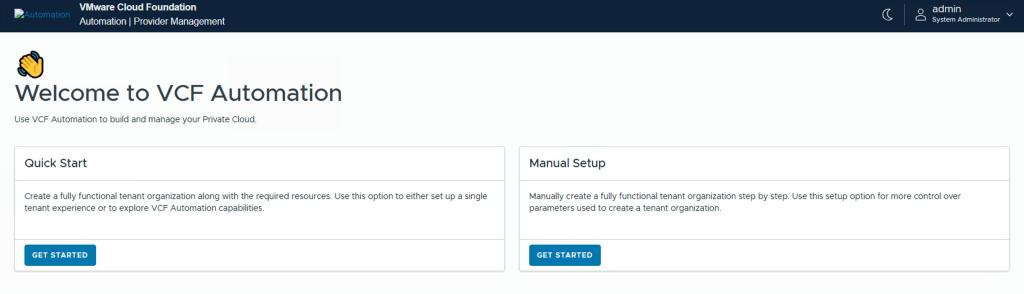
You can use the Quick Start wizard in VCF Automation to quickly create an organization with predefined settings, streamlining the initial setup process. This is a convenient alternative to manually configuring each component and is especially useful for setting up a test or evaluation environment to explore the platform’s capabilities.
NOTE – VCF Automation 9.0, only active-standby mode is supported for NSX Tier-0 Gateways. In active-standby mode, an elected active member processes the traffic. If the active member fails, a new member becomes active.
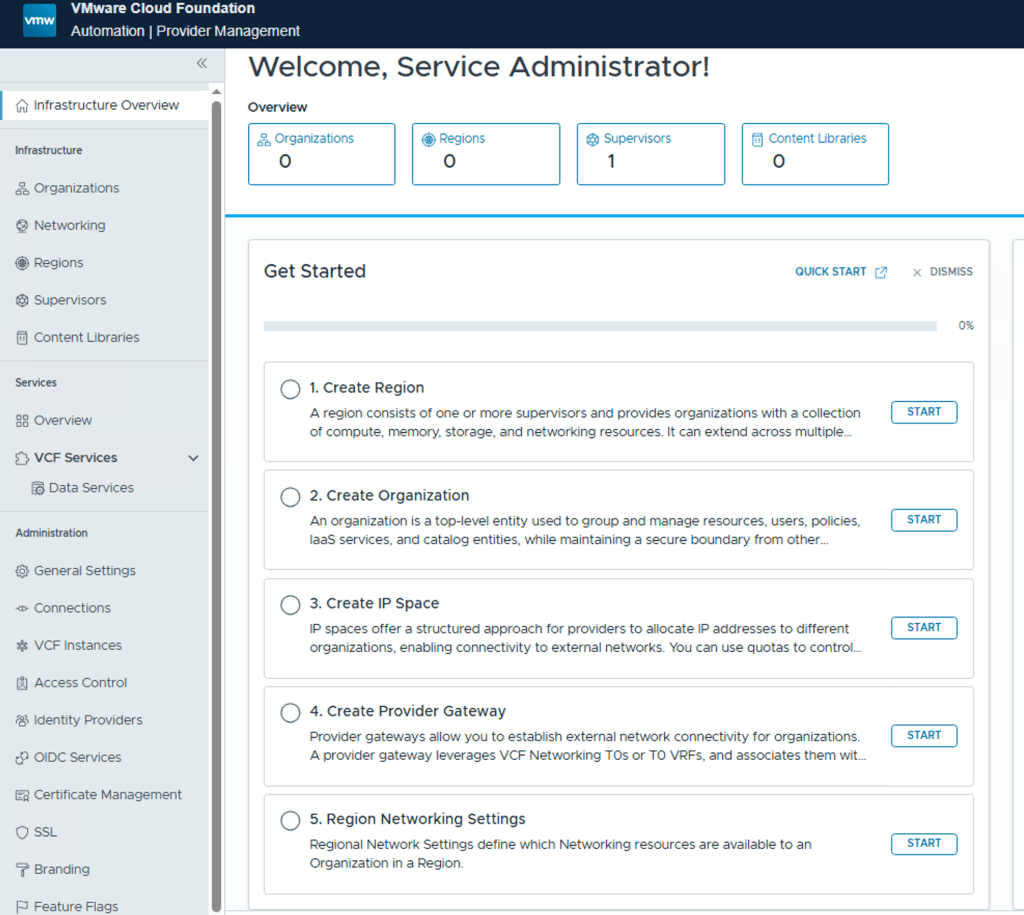
Alternatively, you can use the manual wizard in VCF Automation to set up each component individually—Region, Organization, IP Space, Provider Gateway, and Tenant Networking—giving you full control and customization over your environment. In this blog post, I’ll walk you through that step-by-step process to help you understand how to configure a tenant from the ground up.
Region
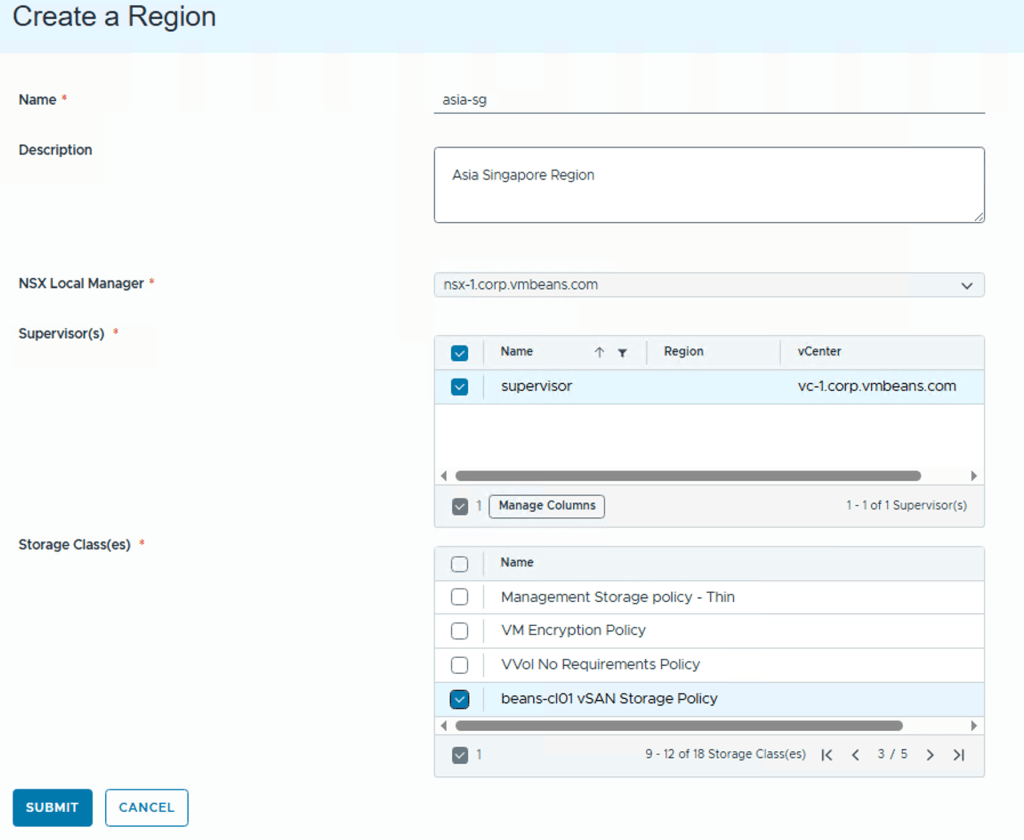
In VCFA, a region represents a logical grouping of compute, storage and networking resources, typically associated with one or more vCenter Server instances and a shared NSX instance.
NSX Local Manager – provides software define networking for the region, select the NSX Manager instance that integrates with the vCenter instances you want to use for the region
Note: A single NSX Manager instance must be integrated with all vCenter instances within a region.
Supervisor(s) – Inside a Region we have one or more Supervisors and provides compute infrastructure for the region, list shows all available Supervisors for NSX Manager instance that you choose in above step.
Storage Class(es) – shows all storage classes across the selected Supervisors.
Organisations
In VMware Cloud Foundation Automation (VCFA), Organizations are foundational constructs used to separate and manage tenants and providers in a multi-tenant private cloud environment. These organizations define the boundaries for resource allocation, identity management, policies, and service consumption.
VCFA introduces two main types of organizations:
Provider Consumption Organization
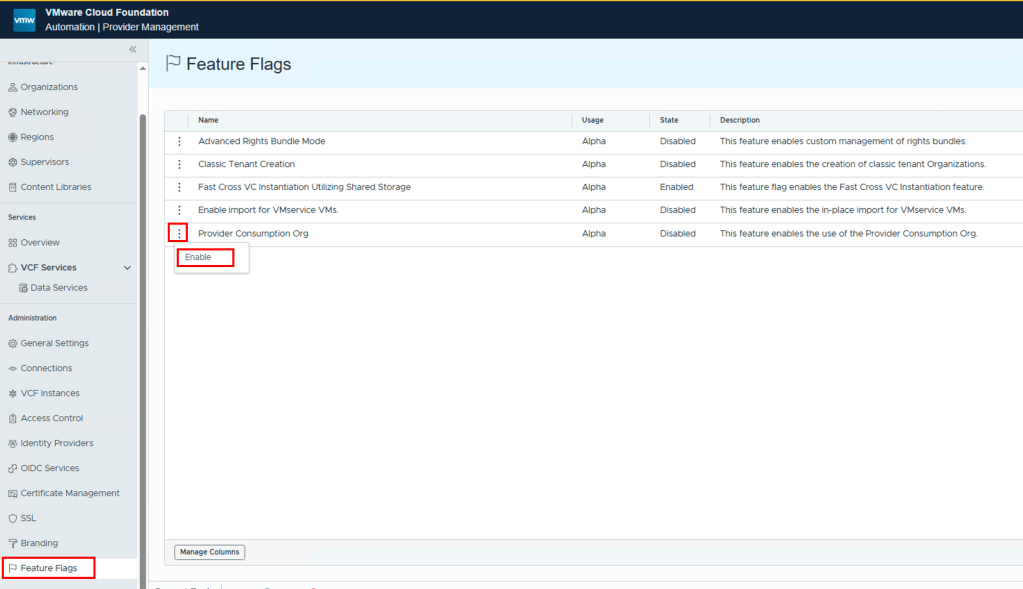
A PCO ( Provider consumption organization ) is created which the provider can use to share blueprint catalog, workflows with other tenant organizations , this must be enabled by going to Administration > Feature flags and enable PCO Organization feature flag
Tenant Organization
Each tenant/customer is onboarded into VCFA as a separate organization, Tenants get:
- Isolated access to their own VMs, networks, storage, Kubernetes clusters, etc.
- Self-service portal and/or API access
- Resource limits defined by the provider
- Option to integrate with their own identity providers (IdP) (e.g., SAML, LDAP)
- Custom catalogs or services if published by the provider
When onboarding a new customer in VCFA:
- You (the provider) create a Tenant Organization.
- Allocate region, supervisor and zones (resources – e.g., 10 GHz, 10 GB RAM).
- Assign VM classes and storage classes
- Configure access control (create local users)
- Let the customer use VCFA UI or API to deploy/manage their workloads.
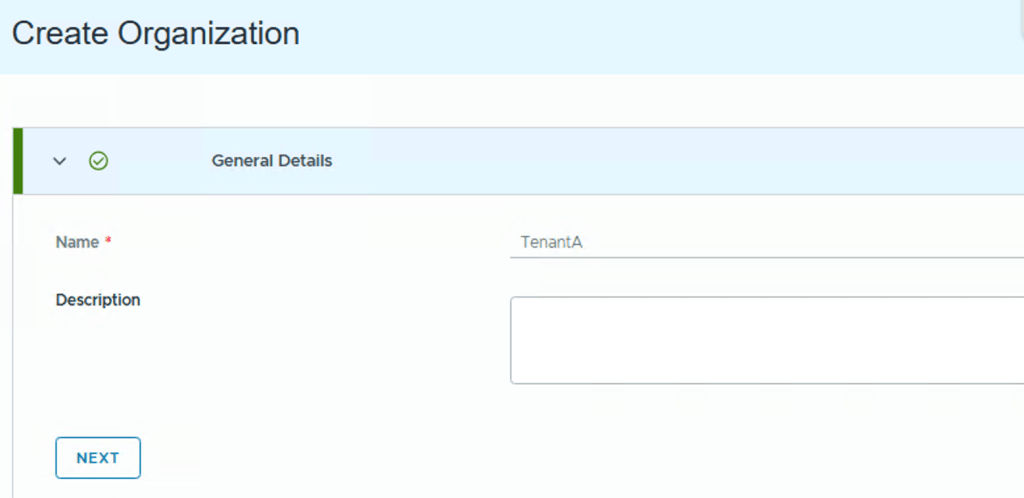
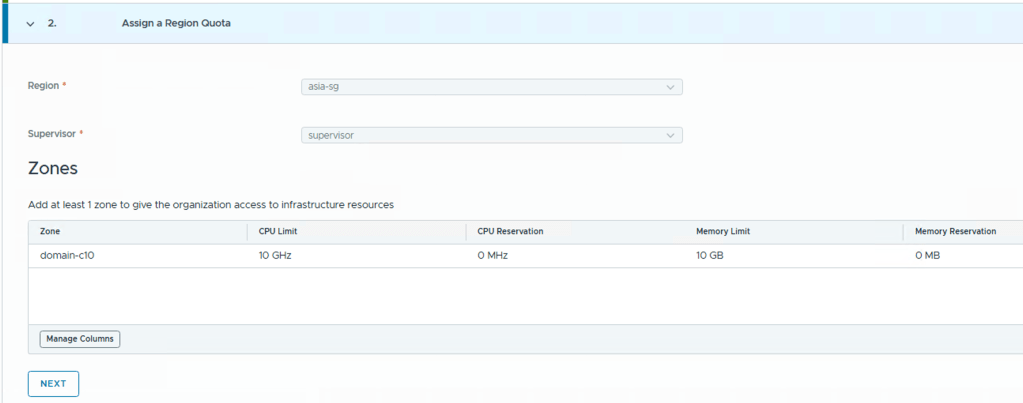
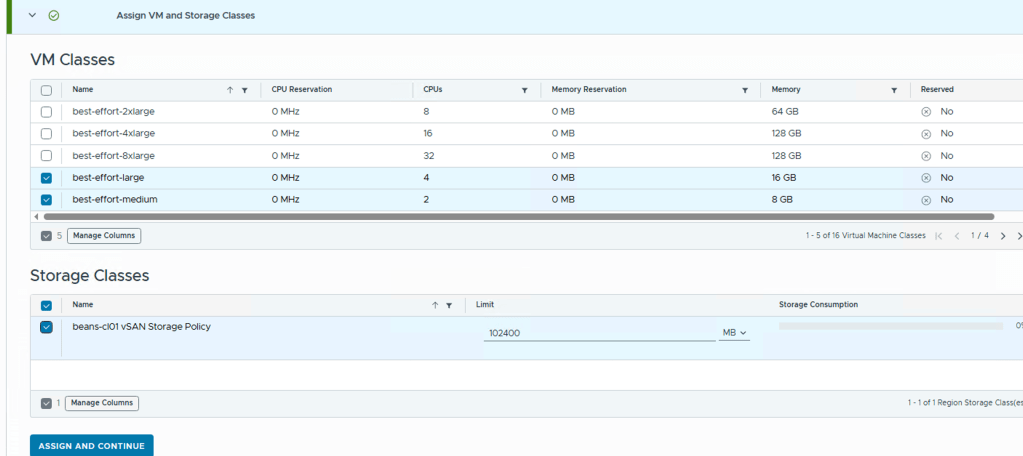
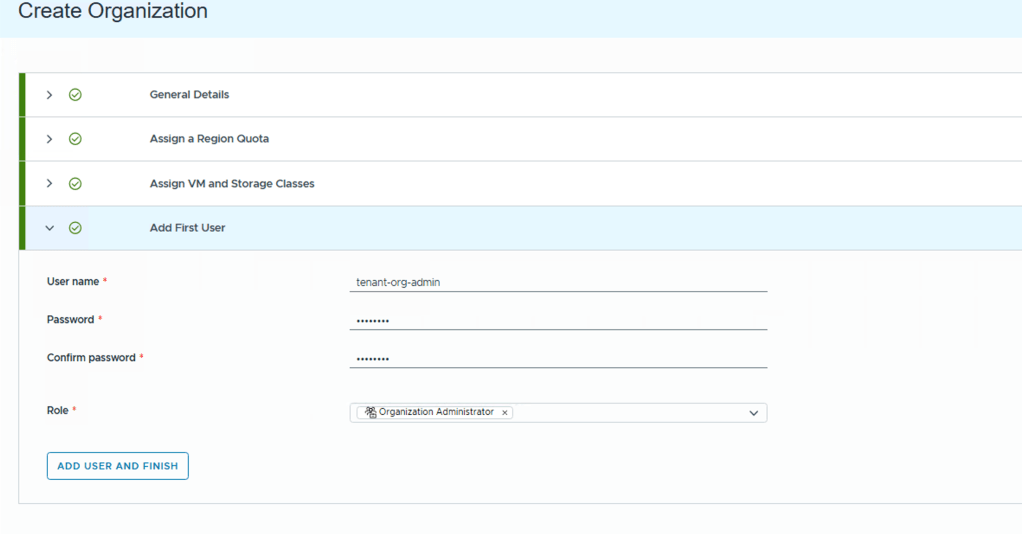
VCFA Organizations are essential to enabling multi-tenancy, isolation, and governance in VCFA.They help service providers manage multiple customers securely and efficiently. Each org has its own identity, resource limits, users, services, and policies.
IP Space
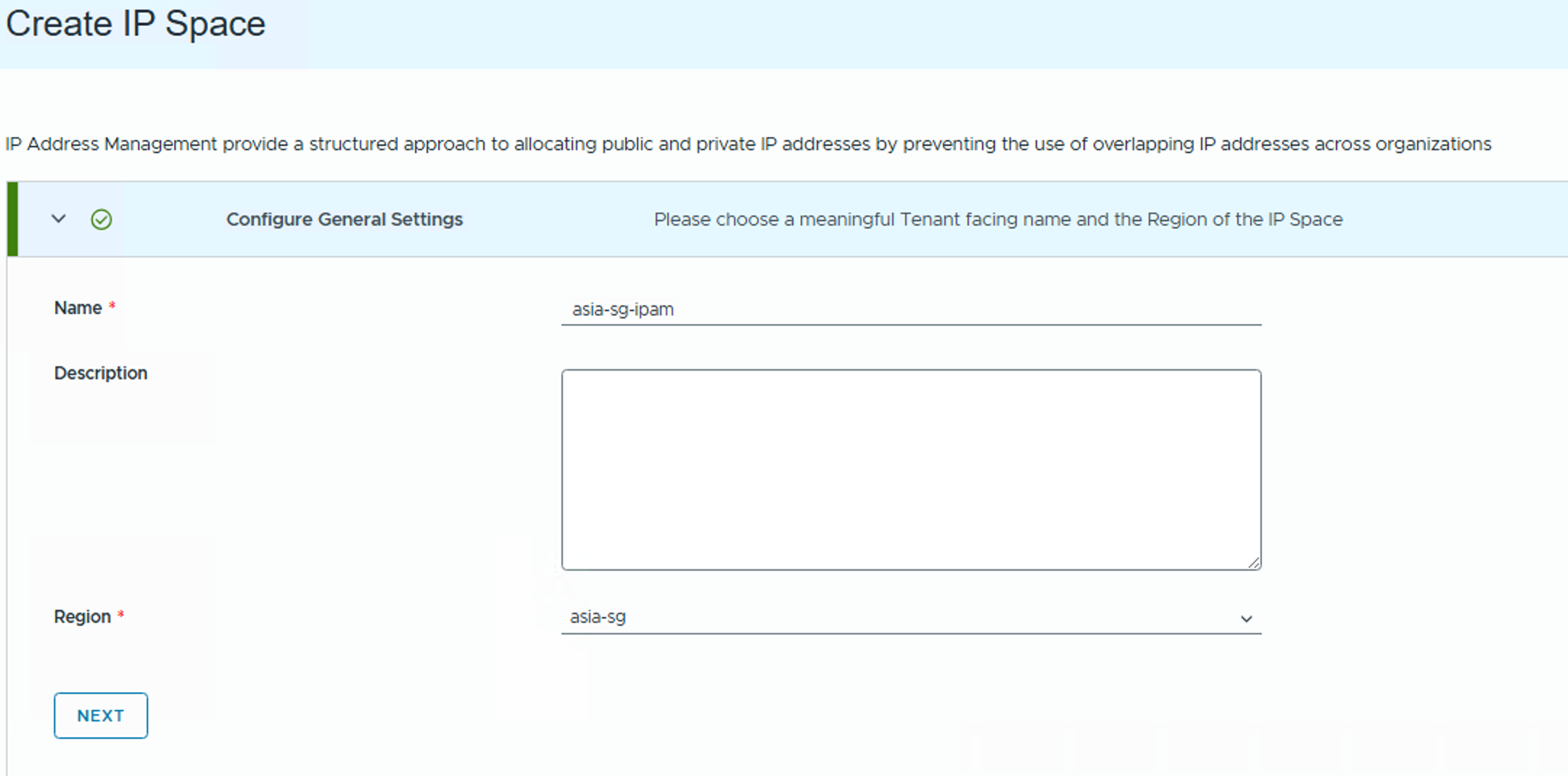
IP spaces offer a structured approach for providers to allocate IP addresses to different organizations, enabling connectivity to external networks. You can use quotas to control usage. For internal organization communications, organizations can self-manage their own IP address blocks.
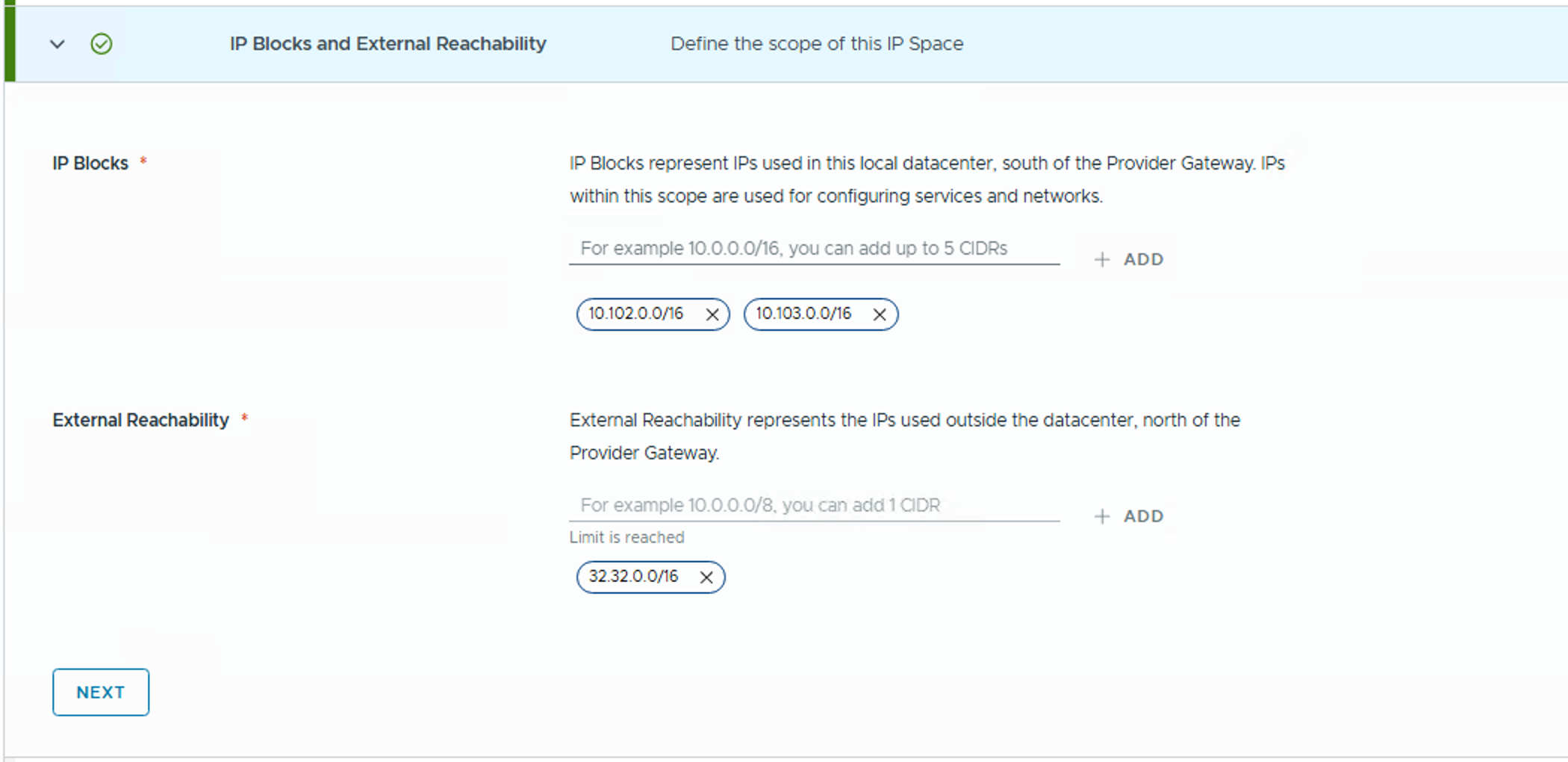
Go to Networking > IP spaces to create a new IP Space and set quotas. IP Blocks are created in NSX. IP Blocks represent IPs used in this local datacenter, south of the Provider Gateway. IPs within this scope are used for configuring services and networks.
External Reachability represents the IPs used outside the datacenter, north of the Provider Gateway.


Provider Gateway
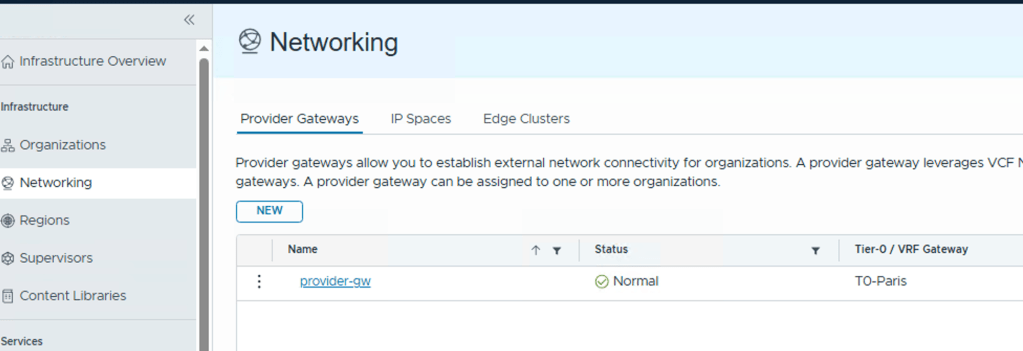
A Provider Gateway in VCFA is the logical network boundary between the provider-managed infrastructure and external environments. It serves as the entry/exit point for all traffic coming in and going out of tenant environments.
A provider gateway leverages VCF Networking T0s or T0 VRFs, and associates them with IP addresses from IP spaces that can be advertised from those gateways. A provider gateway can be assigned to one or more organizations.
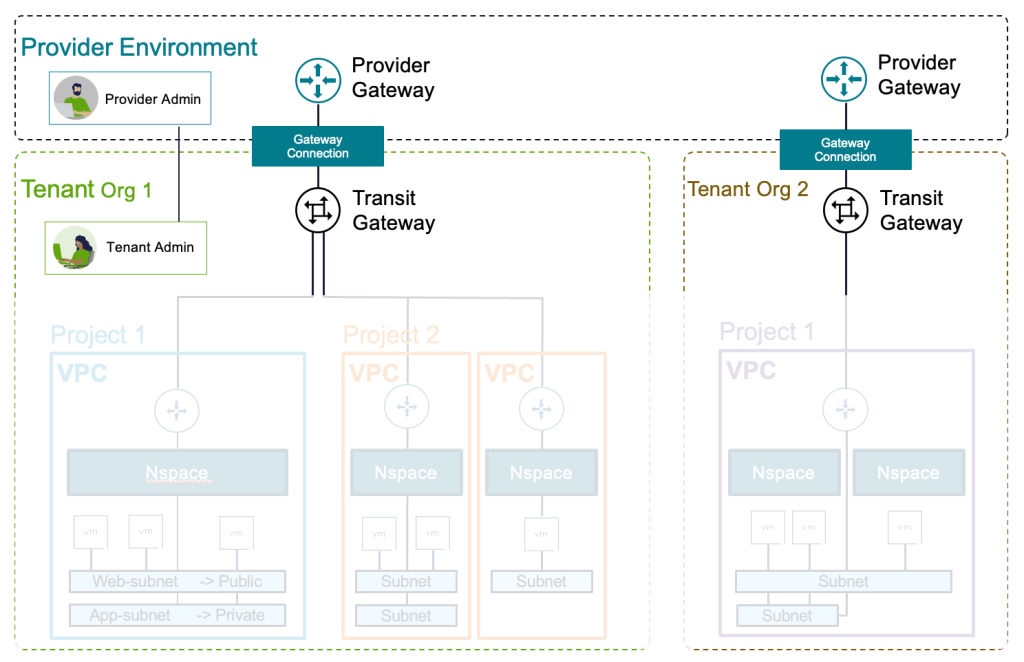
To add a provider gateway, first you must create an Active Standby tier-0 gateway in the NSX Manager associated with the region to back it. You can create the tier-0 gateway in the NSX Manager UI or by using the NSX Policy API.
If you want to add a tier-0 gateway that is backed by a VRF gateway in NSX, you must also create a VRF gateway that is linked to the tier-0 gateway.
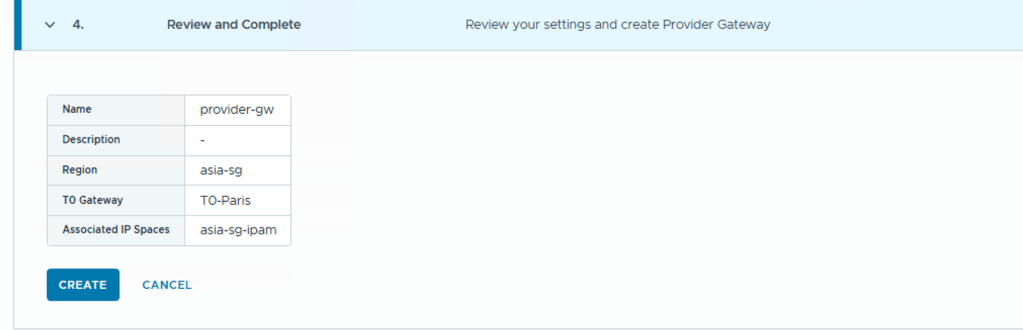
- Enter a name and, optionally, a description for the new provider gateway.
- From the drop-down menu, select the region of the tier-0 gateway, and click Next.
- Select a tier-0 gateway from the list, and click Next.
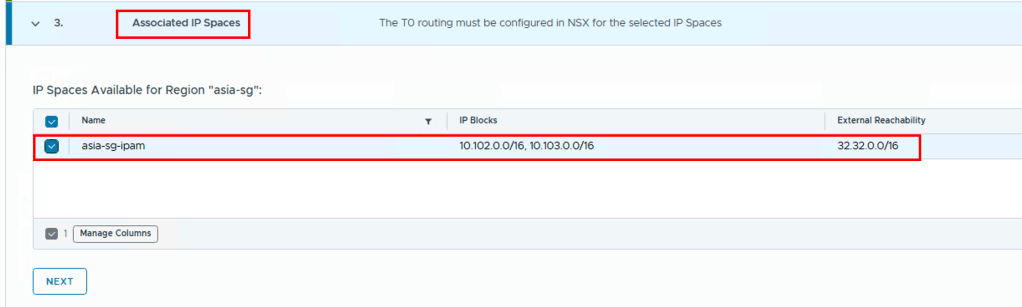
- Select one or more IP spaces to associate with the provider gateway, and click Next.
- Review the network settings and click Create.


Region Network Settings (Tenant Networking)
When you configure networking for a Region in VCFA, you’re defining how tenant workloads in that region will connect—both internally and externally. This includes:
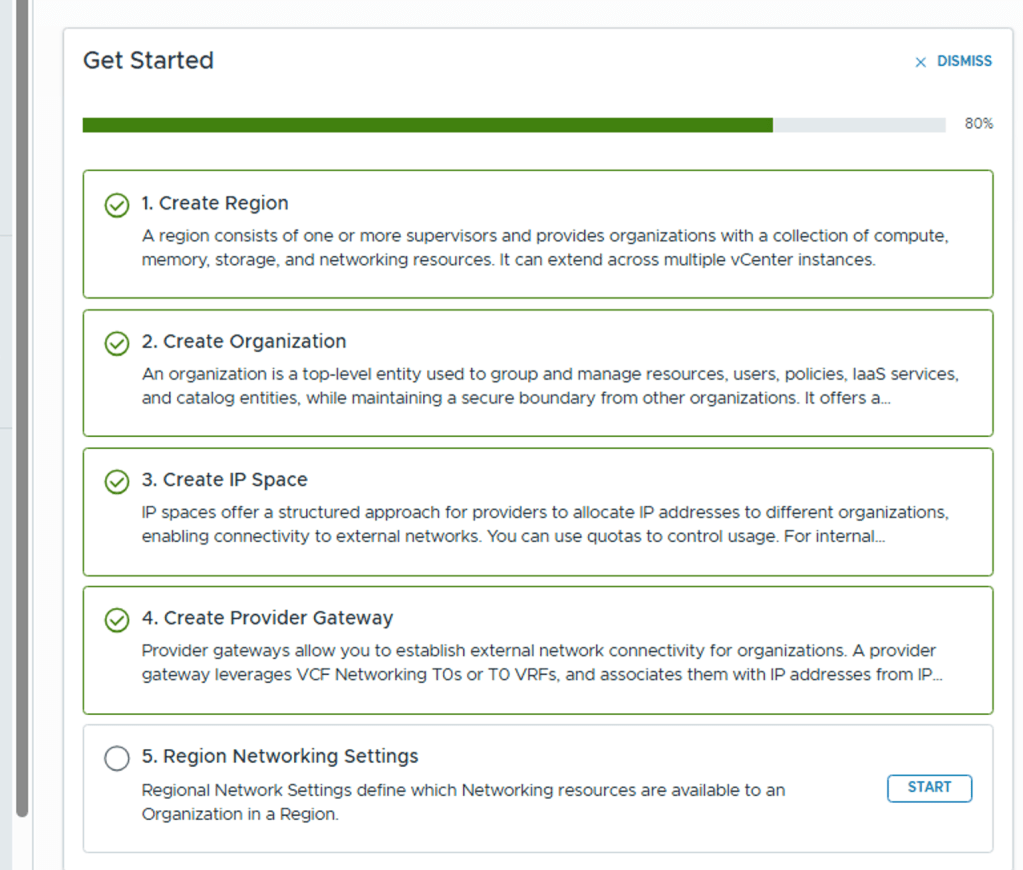
Click on “START” will take to Organization page, there select Organization for which you want to configure Networking and click on CONFIGURE
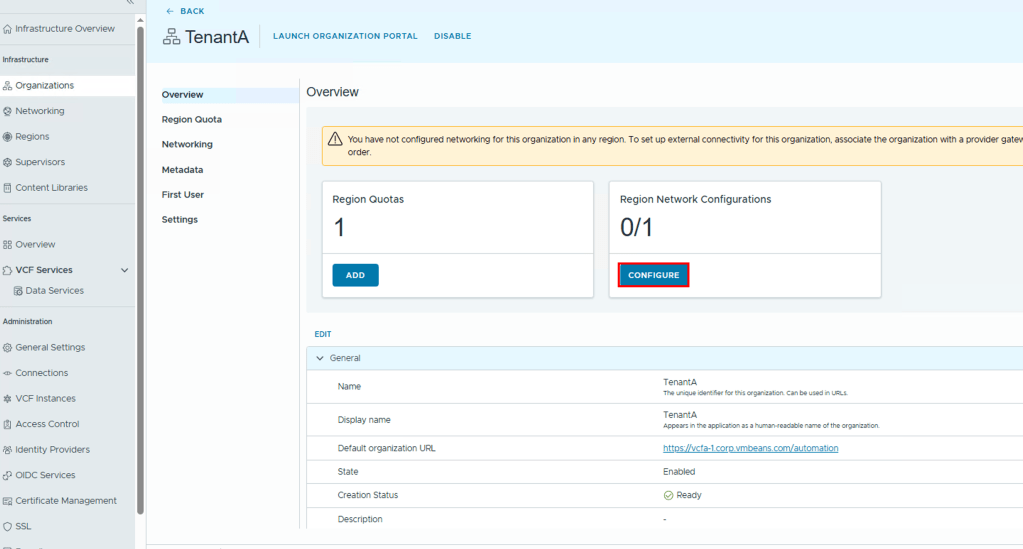

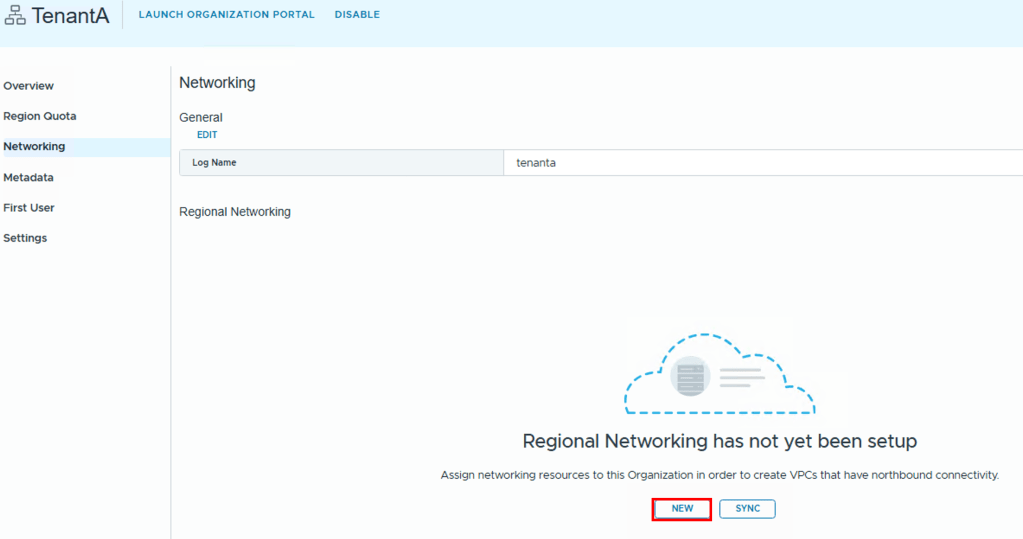
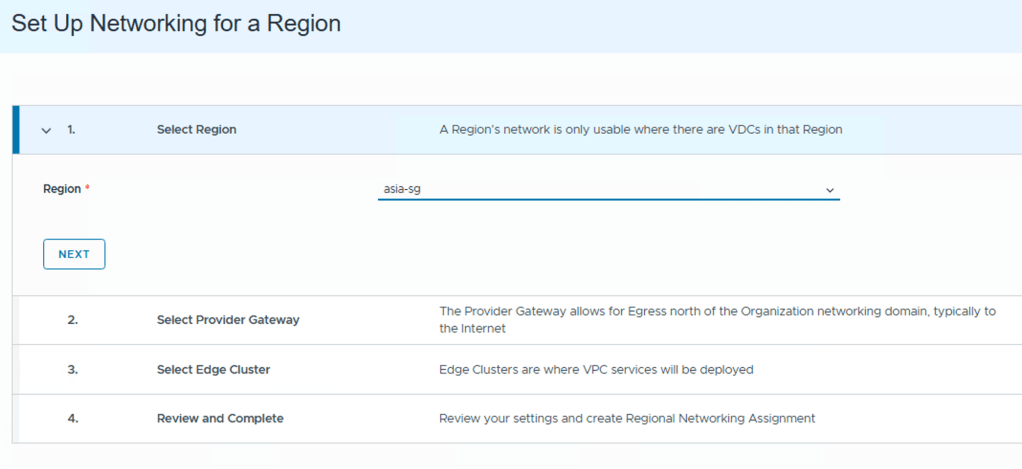
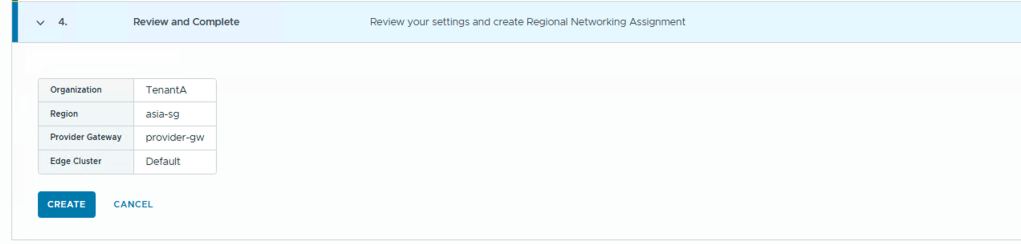
- Select the Region – choose the appropriate region where this organization’s resources will be provisioned, then click Next.
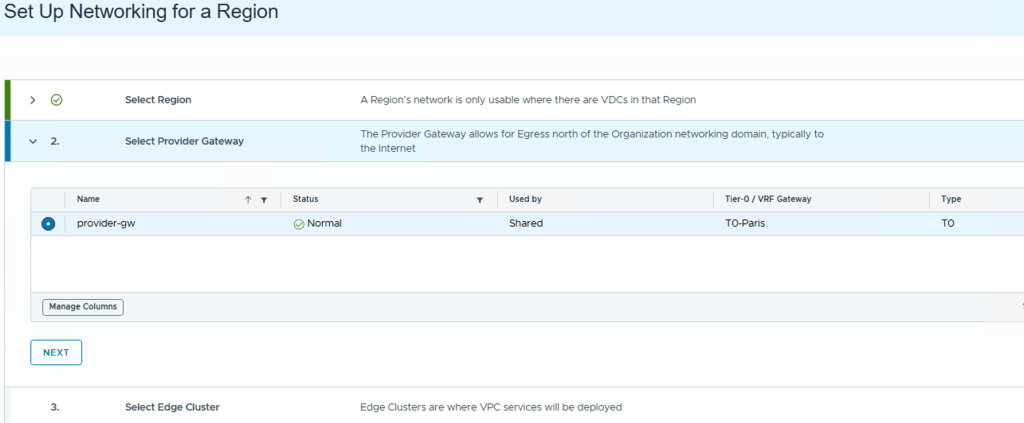
- Choose a Provider Gateway – select a provider gateway to connect the organization’s virtual network to external networks (e.g., internet or upstream services), then click Next.
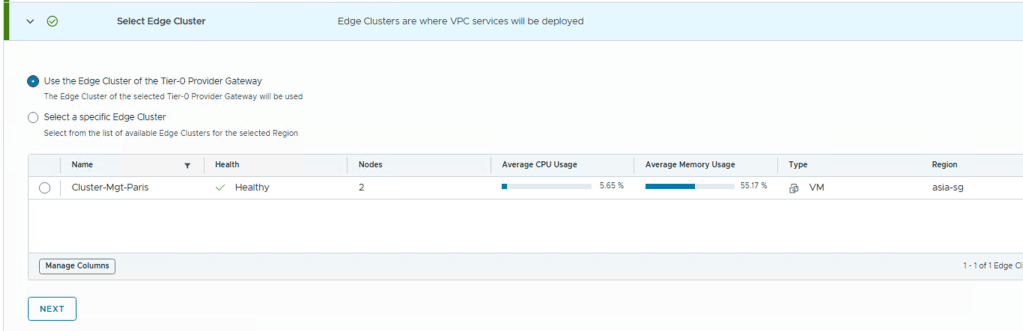
- Assign an Edge Cluster – Pick the Edge cluster where the VPC services for this organization will operate. (You may choose the same cluster associated with the Tier-0 provider gateway, or a different Edge cluster depending on your resource planning)
- Review and Confirm – Review all configured network settings. Once validated, click Create to complete the network setup for the organization.Select a region, and click Next

This blog post provides a comprehensive, step-by-step walkthrough of how to manually onboard a tenant in VMware Cloud Foundation Automation (VCFA) by configuring key components such as Regions, Organizations, IP Spaces, Provider Gateways, and Tenant Networking, offering cloud providers and administrators deeper control and customization compared to the Quick Start option—ultimately enabling a flexible, scalable, and secure multi-tenant private cloud environment built on VCF 9.
 VMTECHIE
Leave a comment